That laptop in the drawer is not dead. It takes ten minutes to boot and the fan sounds like a hair dryer. The hardware did not break. The operating system outgrew it.
Why Your Old PC Got Slow
Your machine is not slow because it is old. It is slow because Windows got heavier while the hardware stayed the same. Windows 11 needs a TPM 2.0 chip and a modern processor, and uses 3 to 4 GB of RAM before you even open a browser.
The other culprits are familiar: a spinning hard drive that gets slower with age, too little RAM forcing the system to swap data to that slow drive, and background bloat fighting for the same weak CPU.
What Is Linux Lite?
Linux Lite is based on Ubuntu LTS, so it gets long-term support and security updates. Its Xfce desktop has a taskbar and start menu Windows users recognise at once.
Linux Lite is lightweight: the ISO is 2.4 GB, it runs well on old hardware, and it asks little while giving you a full desktop.
"Lite" does not mean stripped down: it ships the full LibreOffice suite, Firefox, Thunderbird, VLC and GIMP. The latest version is Linux Lite 8.2 Final, released on 31 October 2026, built on Ubuntu 26.04.1 LTS with Xfce 4.20 and kernel 7.3.
Real Tests: What Actually Happens on Old Hardware
The most famous old-hardware test ran on a 2009 Sony VAIO: a dual-core Pentium at 1.86 GHz, 2 GB of RAM and Intel GM965 graphics. Ubuntu, GNOME and Fedora brought that machine to a crawl, yet Linux Lite ran well on it.
A 2026 guide tested Linux Lite 8.0 on a 2014 ThinkPad T440s against Lubuntu. Lubuntu booted faster, but Linux Lite felt snappier in active use. On that laptop, it used about 650 MB of RAM at idle and booted in about 18 seconds.
On a 2 GB machine, Lubuntu's lighter LXQt desktop left more headroom, so a browser with a few tabs stayed responsive instead of swapping to disk. Linux Lite ran on 2 GB, but you feel it the moment you open a second application.
Minimum vs Comfortable Specs
Linux Lite 8.2 needs a 1.5 GHz dual-core processor, 4 GB of RAM and 40 GB of storage. The ISO download is about 2.4 GB.
Idle memory use is much lower: about 650 MB on 8.0, in independent tests.
2 GB of RAM: it runs, but it is tight
With 2 GB of RAM, Linux Lite runs in a pinch. One app at a time works fine; open a browser with several tabs plus a document, and the machine starts swapping to disk.
4 GB of RAM: comfortable
Four gigabytes is where Linux Lite shines: the desktop, a browser with a handful of tabs, an office document and a media player all fit comfortably.
Under 1 GB of RAM: not a fit
Machines with under 1 GB of RAM are not a good fit — the desktop alone would leave almost nothing for your applications. Lighter systems exist for those machines, such as Puppy Linux or antiX, which runs on as little as 256 MB.
Older articles list much lower minimums — 700 MHz, 512 MB of RAM and 5 GB of disk. Those were the 2016-era figures.
Which Old Machines Fit — and Which Don't
Linux Lite is 64-bit only. The best candidates are laptops and desktops from roughly 2009 to 2019, with dual-core or better processors, 2 to 8 GB of RAM, and a working drive or SSD.
Machines that will struggle are 32-bit-only PCs, machines with under 1 GB of RAM, and machines with failing hardware — a dying drive or faulty RAM are problems no operating system fixes.
Before You Install: Test First, Then Commit
Never wipe a machine on a guess. First, back up your files somewhere safe before you touch the installer.
Second, make a bootable USB stick and boot from it. The live session lets you try Linux Lite without installing anything — and if it feels sluggish, the installed version will not be faster.
Third, disable Secure Boot in the BIOS — Linux Lite does not support it. Then test Wi-Fi, sound and screen resolution in the live session.
Installing Linux Lite on an Old Machine
Installing Linux Lite takes under 20 minutes, and under 10 minutes on an SSD. Download the latest 64-bit ISO from the official Linux Lite site and check its checksum.
When you are happy, click Install Linux Lite and pick your language and timezone. Choose how to use the disk: erase it, install alongside another operating system, or partition it manually. Then set your username and password.
Lite Tools That Help Old Hardware
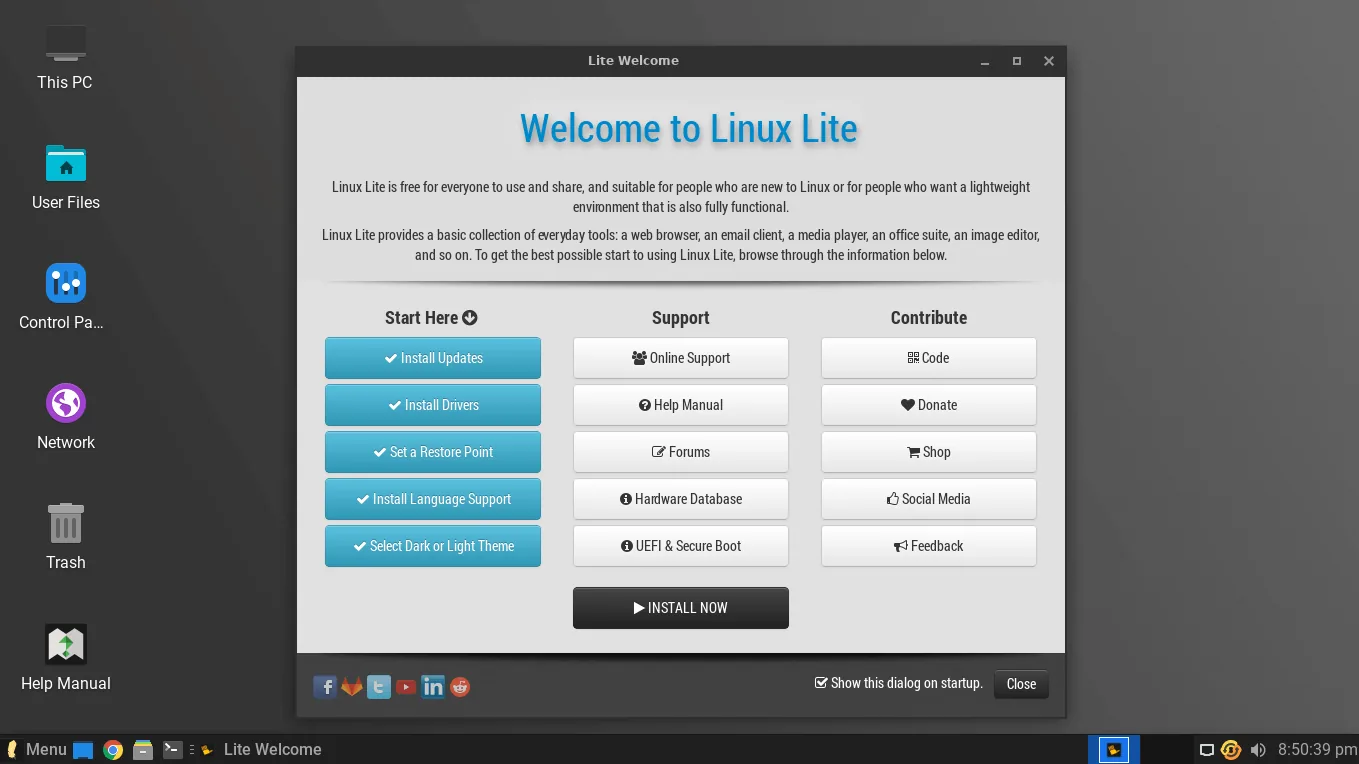
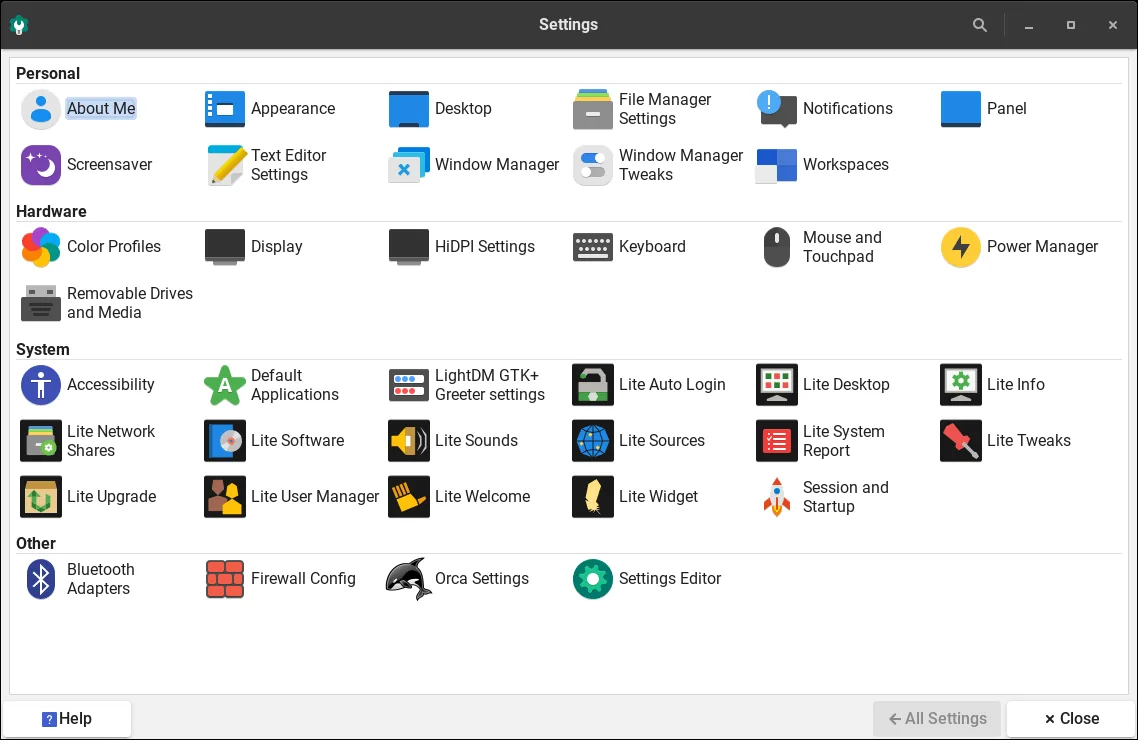
The Lite tools are small apps that do common jobs with one click. Lite Welcome opens on first boot: install updates, then install drivers. Lite Driver Manager detects your graphics card and installs the right driver.
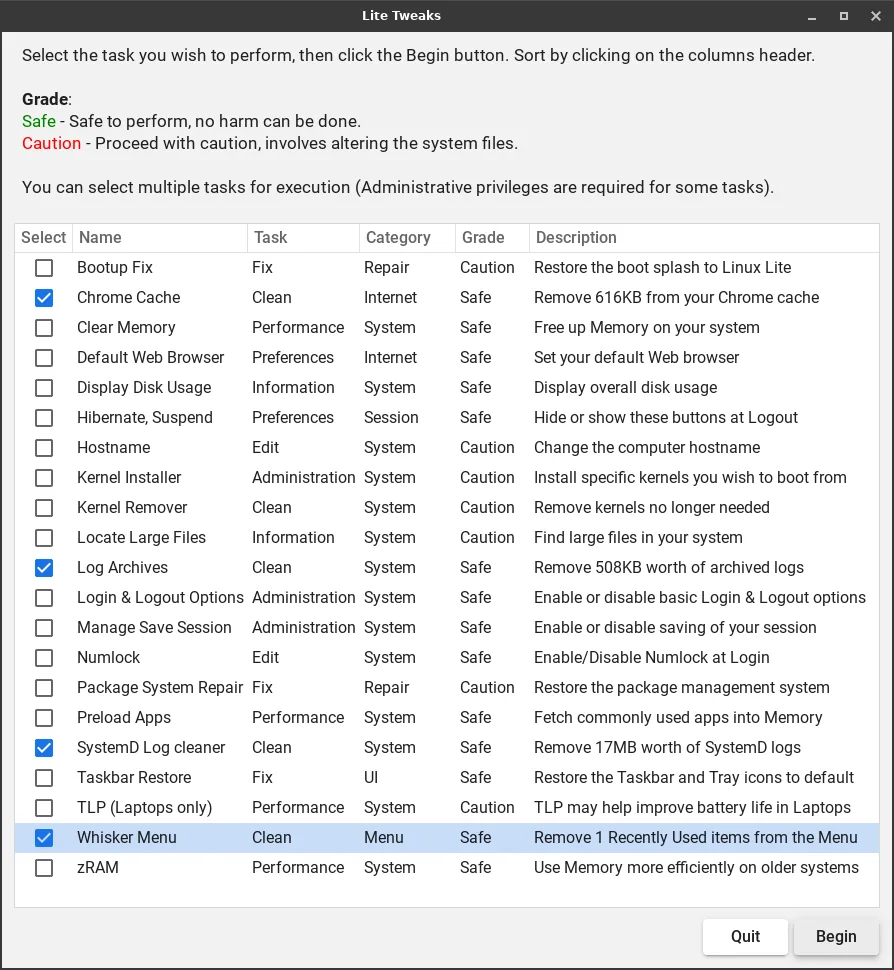
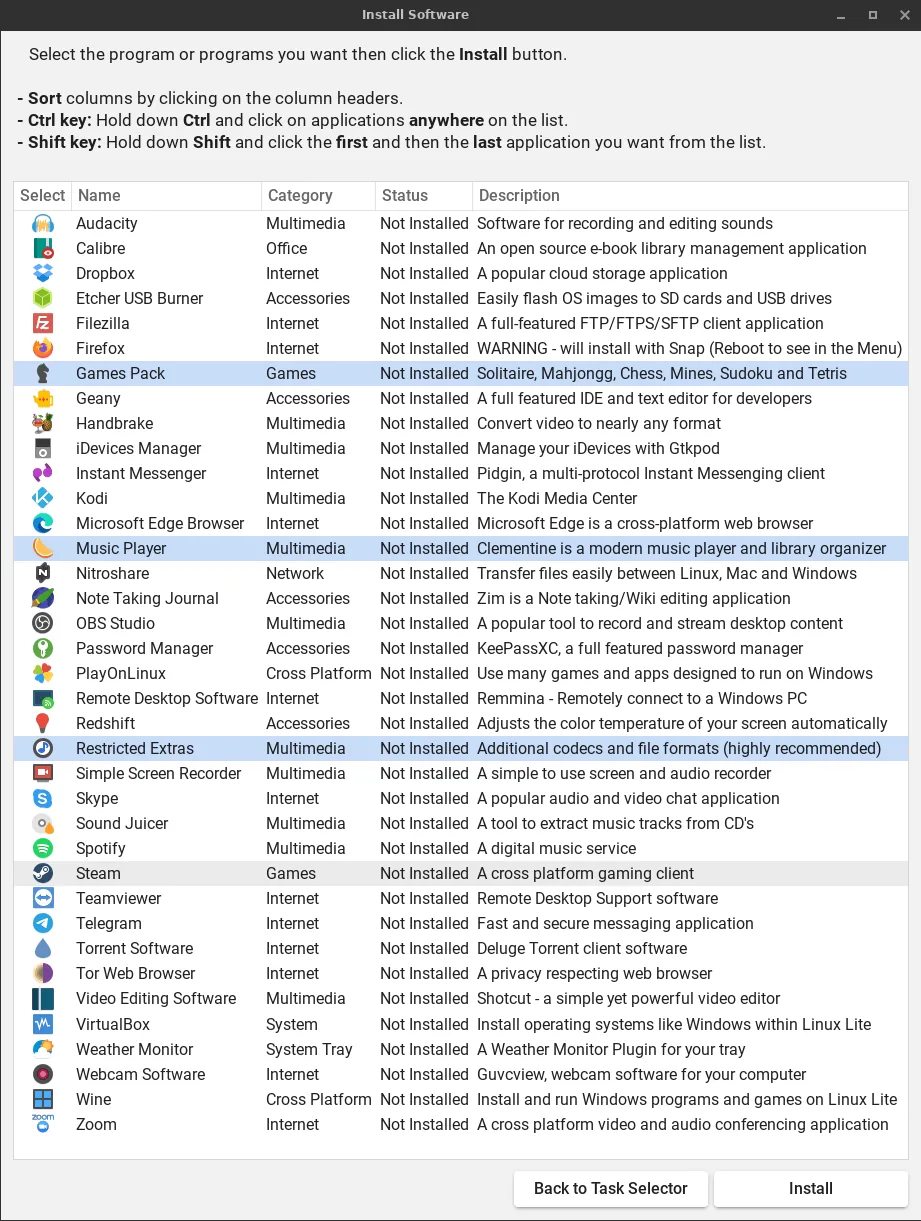
Lite Updates keeps the system patched without the terminal, and Lite Tweaks is a one-click cleanup that clears caches and frees disk space. Lite Software is a friendly app store, and Lite Upgrade handles in-place upgrades from 7.x to 8.x.
What Your Revived PC Can Do — and What It Can't
A revived PC with Linux Lite is a real daily driver, not a toy. Browsing, email, documents, video calls, media playback, photo editing and light coding all work well. It also makes a good second machine: a homework computer, a media player, or a home server.
What it cannot do is make old hardware new. Heavy video editing, modern 3D games and dozens of browser tabs at once will still strain a 2012 processor. Firefox with ten tabs open can use 2 to 3 GB of RAM on its own.
Squeezing More Speed Out of Old Hardware
If your old machine still has a mechanical hard drive, an SSD upgrade is the single most impactful change you can make. The same laptop boots in 45 to 60 seconds from a hard drive and 12 to 18 seconds from a SATA SSD. A 240 GB SSD costs around 25 to 45 dollars.
Keep the browser lean. An ad blocker such as uBlock Origin stops tracking scripts loading, which can cut page memory use by 30 to 50 percent on ad-heavy sites. Clean the vents too: a dust-choked fan is free performance.
Linux Lite vs Lubuntu on an Old Laptop
Lubuntu is Linux Lite's closest rival, and the answer depends on your RAM. Both are built on Ubuntu 26.04 and use the same Calamares installer. Lubuntu idles at around 480 MB of RAM, against Linux Lite's roughly 650 MB, so on a 2 GB machine, Lubuntu is the practical choice.
Linux Lite wins on onboarding: the Welcome app, the Lite tools and documentation written for first-time Linux users make it the better pick for a 4 GB laptop.
The Revival Checklist
- Back up your files, then remove bloatware and unneeded startup apps.
- Check the hardware: 64-bit processor, RAM, drive or SSD.
- Download the latest ISO from the official Linux Lite site.
- Make a bootable USB stick, disable Secure Boot, and boot from the USB.
- Try the live session: test Wi-Fi, sound and the browser.
- Install Linux Lite — erase the disk, or install alongside Windows.
- On first boot, follow Lite Welcome: install updates, then drivers.
- Run Lite Tweaks and switch the firewall on.
- Install the apps you need, and add an ad blocker.
- Still slow? Upgrade: an SSD first, then more RAM if possible.
Pros and Cons
Pros: free forever; extremely fast on old hardware; a familiar, Windows-like interface; a complete set of applications out of the box; the Lite tools remove most Linux friction; regular security updates from Ubuntu LTS; a strong community; in-place upgrades from 7.x to 8.x.
Cons: it needs 4 GB of RAM for comfort; Secure Boot must be disabled before installing; no official ARM version; the firewall is off by default and must be switched on; power users may find it "too simple".
FAQs
Will Linux Lite run on a 10-year-old laptop?
Yes. A 10-year-old laptop runs well on it, and it is at its best with 4 GB of RAM.
Can I try Linux Lite before installing it?
Yes. Boot from a USB stick and use the live session.
Does Linux Lite work on 32-bit computers?
No. Linux Lite is 64-bit only.
Is Linux Lite better than Lubuntu for old PCs?
It depends on your RAM. Lubuntu suits a 2 GB machine; Linux Lite suits a 4 GB machine and a first-time Linux user.
Do I need to disable Secure Boot to install Linux Lite?
Yes. Secure Boot must be disabled in your computer's BIOS settings.
What can I do with an old PC after installing Linux Lite?
Browsing, email, office work, video calls, media playback and light coding all work well.
Conclusion
Your old PC is not dead. It was suffocated by an operating system that kept demanding more while the hardware stayed the same.
The tests tell the story plainly: a 2009 Sony VAIO that crawled under Ubuntu and Fedora ran well on Linux Lite, and a 2014 ThinkPad became a snappy daily driver.
Try it from a USB stick first, back your files up, and give the machine an afternoon. Reviving old hardware keeps a working computer out of a landfill.